Microsoft is in the process of updating the millions of Hotmail accounts to the latest version that runs faster and includes more features than before. Our account was recently updated, so here’s a tour of the new features.
Windows Live Hotmail was one of the first free webmail services back when it was called HoTMaiL as a play on HTML. In recent years, Microsoft has rebranded their online services under the Windows Live brand, so now Hotmail is commonly used with @hotmail.com or the newer @live.com email addresses. You can even use Hotmail and other Live services
with your own domain. Despite it’s previous popularity, Hotmail has lost many users, especially techies, to Google’s popular Gmail service. The new Hotmail brings many features that Gmail has offered, as well as some unique ones, so let’s take a look and see if the new Hotmail has to offer.
Take a Look at the New FeaturesIf you haven’t visited Hotmail recently, you may notice the login screen has changed slightly with larger, Metro-style fonts and a clean design.

One of Hotmail’s new security features is the new single-use sign in code. You can request a code which will be sent to your phone via text message. This is a great way to login to Hotmail from a public computer without potentially revealing your password to malicious apps on it.

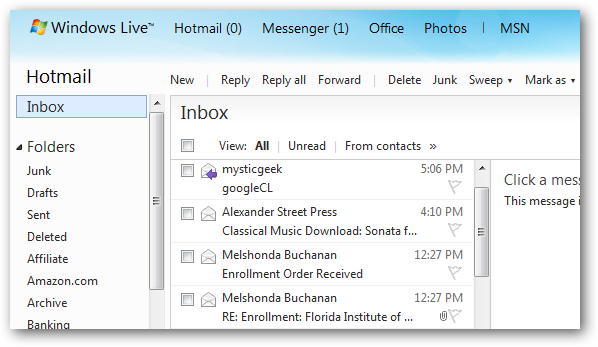
Once you sign in, you’ll notice a new Hotmail logo on the top of your browser window or tab. If you still see the old Windows Live logo, then you’re still on the old version, so you’ll have to wait for your account to be updated over the next few weeks.
![sshot-2010-07-28-[00-25-22]](https://lh3.googleusercontent.com/blogger_img_proxy/AEn0k_tJWLvSRFX_INztItVAuWA4rn43RHI2P9vvWeA7JOdll2G_rYjHIZggodBW4-rtOU1FGYTal5uSBvG-S3Ykhy3wjN-yhL6JYjBWmbRDQEKRLdWgDG96nFfG7_B0HvpCC0lxdZgAyR1qhzfHZX5N=s0-d)
The new inbox looks largely the same as the previous version, but there are tweaks all around.
 Timesaving Features
Right at first you’ll notice new
View options in the Inbox; you can chose to view only the unread messages or those from contacts in your address book. You can even select
Social updates to only see the messages from Twitter, Facebook, and other networks; this is a great way to quickly clear all the social network junk out of your inbox.

Another timesaving feature is the new
Sweep tool. Select this on the top of the Hotmail page to quickly manage all emails from a sender.
![sshot-2010-07-28-[5]](https://lh3.googleusercontent.com/blogger_img_proxy/AEn0k_vyKKovyJv3rCoH_w4WOzGTWCK2gVV7cewS8SVPnzQSBXr2JFlvBruroOTFom0IyMobWrDdZjvJmaS05ULOMgU3kcw7pf0ocZ1SDKRliIhSYLwBz5pz6S-zjeC_rOJbvTKTO9MSjoMb4cMmQf_MGPUg=s0-d)
You can have Hotmail automatically move all emails from a contact into a specific folder, or even automatically delete messages from a contact. This is one of the easiest ways we’ve seen to setup inbox rules, and it works great.
![sshot-2010-07-28-[6]](https://lh3.googleusercontent.com/blogger_img_proxy/AEn0k_sd5pwo9lqS5CXj8bNMXXieDBFIVPGx8j4NwRhi_WotASUyoI88CnM3w3CuT4d47wCfIkgzrEnCrZY4qDxX1Uj9JFpCiXBnfi2bR4t7Jb9IMI4XPwBl_H2hn2BWfE41zwcs8A3qzYJGO-TcyYrdG7M=s0-d)
Hotmail includes the new
Quick views underneath your folders on the left. Here you can easily view messages that are flagged, or ones that contain photos or office docs. You can even click the
Shipping updates to see all shipping notice emails you may have received.
![sshot-2010-07-28-[4]](https://lh3.googleusercontent.com/blogger_img_proxy/AEn0k_tzfGgg6irRhaQpZnGYqbRlEC-Q5Y1x7cJAmL1vf4qCSSyRZA_TqKfUyaTyLkF9pda8UQd8oAlb3TfkKinDBdQH9RxHUSzB9O5usDO-CspFws3uLwTK12gOflDAUgv-8VfIgoxrjO8T8Y21zAJRwOeF=s0-d)
Hotmail’s searching capabilities have been improved, too. Simply start typing, and Hotmail will suggest alternative options. You can also use standard search queries to search for emails from specific senders and more.
 Reading Emails in the New Hotmail
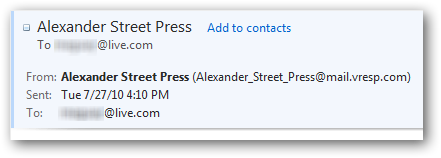
Hotmail’s reading pane has been redesigned with nice and useful headers. Click the bottom of the header to expand it.

Now you can see all of the info about this email, including the sender’s email address and other recipients of the message.

If the email included attachments, you’ll see some quick info about the files directly below the header. Click the
Download link to download the files, or if the email included Office files, click the icon to open them in Office Web Apps. This is a quick way to read Word documents and preview PowerPoint presentations even if you don’t have Office installed.
![sshot-2010-07-28-[7]](https://lh3.googleusercontent.com/blogger_img_proxy/AEn0k_uo-YYO21oEnDZhxV0uV2WtRnGc7sn39uJxpgUoz7lcPZO5YaQp8KJ7FQ7IkEjv1RCS0LtVRK_8fE2aF5b6i7EFRUi7a9DRB50a6_U46sVRD41SVbul6VfQ0BRLJra6AntdXh7pFGFZUj6j881ExnL4=s0-d)
If Hotmail detects the email is from a mailing list, it will put an
Unsubscribe link right at the top of the message to help you quit getting email you don’t want.

On the header, you’ll notice a new Actions button underneath the time the message was received. Click this to quickly reply, delete, forward, or more. You can also click the flag beside the time to flag the message for review later.
![sshot-2010-07-28-[3]](https://lh3.googleusercontent.com/blogger_img_proxy/AEn0k_u9VAdwC4BlgkdtwfSbsqbPewYbh1YUIrsF86YRTmOQjVzHHWbPCVOVFTUA8eIvx32DdwLtAbbZor1R49541fJe7Nj7TSd3RwHyU48Vzhg6T-YtYNiTYUcLtcfS8Eh23VCD-dfmw3nbOH-Y1ZVHdQ=s0-d)
Our favorite new feature is Conversation View. You can now view your emails by conversation, and this works very much like
Conversation view in Outlook 2010. To activate it, click the button on the far right of the reading pane, and select
Conversation.
![sshot-2010-07-28-[8]](https://lh3.googleusercontent.com/blogger_img_proxy/AEn0k_v21VtGDbRETvQMcRey_1YZbZ7ellarRzgZyOL5PBafzZFOEb9UYpwet0jAWk0suI1qAKytnTv7uWBvllc65dgdBFTZVo4xAhtShbfyOD9Yu5AtMis1NXyC7QFSVEm73yfIUPqNB1Wdec6nRw5Ps_s=s0-d)
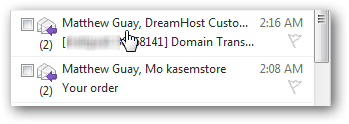
You’ll now notice a number beside your email subjects showing how many messages are in that conversation.

When you’re reading messages, you’ll see other messages in the conversation above and below the message. You can read the preview, or click the message to see the full email right there in the same reading pane.
![sshot-2010-07-28-[9]](https://lh3.googleusercontent.com/blogger_img_proxy/AEn0k_taySVKhSaYSvLzr9N66aAqRhSkL5WU63ERHydXCzmp_73wwyfJsKhGyDiLNjjuiglv8UB_4tuJ-fkJU0ynIDZSxAJHX_f030kFTnarx5dGhY-MHd3h6j4PD7y8XGA-S4F3lqtXNaKorD_jwb2ZmQ=s0-d) Composing Emails
Composing EmailsWhether you’re replying to an email or writing a new message, the new Hotmail includes tools to make it easier. You can add Office Docs via Office Web Apps, and send a nearly unlimited amount of pictures with an album on SkyDrive. Or, select the
From Bing tab to add a variety of web content to your message.
![sshot-2010-07-28-[10]](https://lh3.googleusercontent.com/blogger_img_proxy/AEn0k_uKDQFtmhwx-dVDigovlFhDHy39xkRTBKUpgZ8ryhqrVkVEQYp68gq6u-DVSInvgdz1ADehsxFWjlNP_nZNLHnn_qRhGTPd1UdQ61It3frzdbFQOtXb5rH6kahtDhhkpzSuiRBF7m52LPdXhCJrtctg=s0-d)
You can add clipart, pictures, or even videos from Bing search directly from the sidebar. Just select the option you want above, and then search for something to add to your message.
![sshot-2010-07-28-[11]](https://lh3.googleusercontent.com/blogger_img_proxy/AEn0k_vlDMMgU839-8mNXvYosUcj2UjYhrOYWMwPNcp4nqEkir9HD5o8p6ip4zyKPzv3jrnBnUapC9pQ1QvHLwBqcLzX5vM0hsgbiYa_Q2wF0dMHlZCG7qk5GajJ53y-yduXuTJdVdNnueriPOAPkGSuKK9r=s0-d) Ads
AdsHotmail does still include banner ads on the right side when you’re reading emails, but there are some new tools to help you manage them. If an ad is getting in the way of reading your email, you can click the X on the bottom right to close it. Note that the ad will open again with you switch to another message, but this can make it easier to read an especially wide email.

Or, if you find an ad offensive, click the Ad feedback link to let Hotmail know what you’re thinking about the ad. This will help them make the ads less annoying for everyone. This works very much like the ads in Facebook, and we think it goes a long way in helping people feel comfortable with the ads they’re shown.
 Messenger
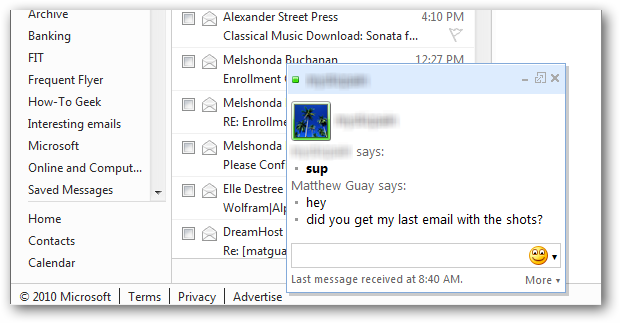
Hotmail and other new Windows Live apps now are fully integrated with Messenger web. You can chat with your buddies directly in Hotmail. If you open an attachment in Office Web apps or go check your calendar, Messenger will go along with you so you can continue your conversation.

You can see your online contacts from the
Messenger tab on the top of Hotmail. Click a contact to start an IM session with them.

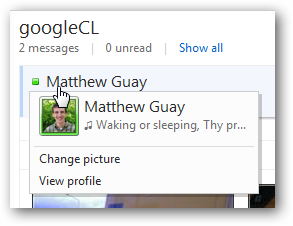
You can also see your friends online status from your email headers. Click to start chatting with them, or if you’re hovering over your own contact info, you can click to change your profile picture.
 More Features Coming
Hotmail has some more new, great features that will be added in the near future, including full session SSL encryption and ActiveSync to sync your Hotmail email, contacts, and calendar with popular mobile devices.
ConclusionWhether you’re a longtime Hotmail user or are considering switching from your current email provider to Hotmail, the Wave 4 updates make Hotmail a much nicer email service than ever before. We liked the new Conversation view, but also appreciated that you could turn it off if you don’t care for it. The new attachment options make it easier to share pictures, links, and more. The social network integration into Contacts makes it easy to keep in touch with all of your friends. There are still some areas that Gmail is easier to use; for instance, we prefer Gmail’s in-message reply; one click, and you’re ready to reply and send. Give the new Hotmail a try, though; we think you might find some stuff to like!
Please Remember: The new Wave 4 Hotmail isn’t activated at all accounts yet, so if you don’t see the new features, be patient; your account should be updated soon.LinkSignup or login to your Hotmail account
Similar Articles |
Productive Geek Tips |
|
|


![sshot-2010-07-28-[23-29-22]](https://lh3.googleusercontent.com/blogger_img_proxy/AEn0k_vZ3S5OP3zj7deCfcVDRyABehjcKn-GJCozB8uH0SBHwqBgx_GBlwJLN4nTnQcSd3ieFJTaxbHytSUTk1sRtTWMdKDixuU6-PYCQlB3PNwlPeqIK5lkite--VJa0G03rxhTo0kNMXzS8uyW-G75=s0-d "sshot-2010-07-28-[23-29-22]")
![sshot-2010-07-22-[19-26-46]](https://lh3.googleusercontent.com/blogger_img_proxy/AEn0k_v_JmkthMF8Uabd3ndXKcFe2geUZF85_w-Ad95VifDbR1UKJHf4TvWvvvIepkXJkAOvrGAHAi4EEP-PH2_WBcijSxKmyrwNOlYiQ3ZSGcpNBdp5zsr4JOx9E-9FXEyY-ODirNR5E08MJSBuZ4Z5Ew=s0-d "sshot-2010-07-22-[19-26-46]")
![sshot-2010-07-28-[22-04-02]](https://lh3.googleusercontent.com/blogger_img_proxy/AEn0k_u4FD_nk1e3jKUABpU-xqbJa_kSKqcjnee4b4xS7etWKZGmbkRSA8RcFtFmSo1cgs0TLu7JYhnwLAHLPW5T4uayuv-HShvVnnFfkDUrUcivSJLFfAlrw_zCov8_f-GZuRVejqgiAsRyzC1CEtxVuQ=s0-d "sshot-2010-07-28-[22-04-02]")
![sshot-2010-07-28-[22-09-27]](https://lh3.googleusercontent.com/blogger_img_proxy/AEn0k_vshfvtgx15JlOZu_fiRv9DkJUi_ktNXoiofJx13OrgsoIcY41sorjWGjz7Lm0jgwyphrykjALr2cN5We19Hwp0CpPASrSYMaqL184nrhCIGrH0xT8p3459bpf3ycD78s2jqQ44Cnh1ZfCTD_bv=s0-d "sshot-2010-07-28-[22-09-27]")
![sshot-2010-07-28-[22-11-06]](https://lh3.googleusercontent.com/blogger_img_proxy/AEn0k_vFDRWUyimu-zqr2VUeQt4aM5NILu97u2idcao9KJfuVtivjhsqG8GJXplAHi5ZlpcCZPE_B7BeQ5EdG-qaKeykdVyme5iusYBWynqFfZXNgXZNbZYLcXx5_e1jptcrW1dWWdpGJpdju09ZMvTj=s0-d "sshot-2010-07-28-[22-11-06]")
![sshot-2010-07-28-[22-14-04]](https://lh3.googleusercontent.com/blogger_img_proxy/AEn0k_sureacdHpFxBPPeCCL_K_MiPos4EMgFB4ljfhQ5A4arwBfxow4c7MuAWAlVRi3Ued0mYEqa-x8SaEiXFWo9aEhcmO64KsYwYUSKWK0usJGqtO7wdazxDc7NYmdEmMufpQnHAu8qaJ3PjwFiifkWg=s0-d "sshot-2010-07-28-[22-14-04]")
![sshot-2010-07-22-[19-30-17]](https://lh3.googleusercontent.com/blogger_img_proxy/AEn0k_uBi6j_s98Gmx6vax_sRX8PL22qTuOKGPbioeR279DbRiin9BltpOXPc2dXgi7bvGkZuCsIUg-MIEaizwnD1NMTI7wUKgXYGucJylcmRqY63LEG4dqIm8c7JjVmnj1ZEDmmzf2WUgv1CYGkNMXOtg=s0-d "sshot-2010-07-22-[19-30-17]")
![sshot-2010-07-22-[19-30-50]](https://lh3.googleusercontent.com/blogger_img_proxy/AEn0k_sj5Y1NqcumfrlZNEyeudvvyDaSorFwhE69RnO6mZMBPDun3lrEBKFQLh2J5XOq8uuCWoxH0MXRSzZF6PBXrWWDfvpDwFVxODuaJZFjKFLObBfBgAfHPuCNFPbSxSqxht1usKAoEYk5ZdouqFy2Iw=s0-d "sshot-2010-07-22-[19-30-50]")
![sshot-2010-07-28-[22-24-28]](https://lh3.googleusercontent.com/blogger_img_proxy/AEn0k_skapCAJquK2IAkZc5uoUwIhg1E6gE4vmDmVGFmIvCHb89wwX_5emQsP2QuNzPAKT3M4ixAlrROKhSLWxOo2Ha8c4zCxaKLWdbao88GR9L75CiPCRCshjx3uuUTwYTKzyS5C9OiR_kr_239KfnouQ=s0-d "sshot-2010-07-28-[22-24-28]")
![sshot-2010-07-28-[22-26-10]](https://lh3.googleusercontent.com/blogger_img_proxy/AEn0k_stltW7OqjdsBLEKSweK_dU56fuDXDpr9MGjcmm36KQHl6YgdLfcz4d6tcNmAwIrLBtC-7JMz_XXnPnn3_gVpwttcoL8Ignj0Fp-iBoqJia641xZtqaYRx3QqpFV8Arvc9We-fV9b_JZTmqeQRJGA=s0-d "sshot-2010-07-28-[22-26-10]")
![sshot-2010-07-28-[22-27-19]](https://lh3.googleusercontent.com/blogger_img_proxy/AEn0k_s54FrCi58OAaGbfmzBwrnS31RIEUqMwLsM5RS5jXC3G-RF3Y8zgcGDYn-D3oxZvZuCoSjWdgYhz5nk5PZ_JQqBaRl5fuxEgrEhwu1H_z5mXC-54FxxmuZW0c68vsfO1cu3cudiYijqKHKR--AelA=s0-d "sshot-2010-07-28-[22-27-19]")
![sshot-2010-07-28-[23-14-12]](https://lh3.googleusercontent.com/blogger_img_proxy/AEn0k_tWvIdzynP4sLC-cAAOWGIfE39TGs-VS6OWzhTnKxi6-TBgpwwSWmj9XrX-_3vAe0Dv5X7SlX2dXHa9H5jhpMOsk9_UKYozlW0QkHV_PycXHv-PIBLkM1pTjWGCR0Jz1cr-zm2N1yfmZDrH04G8mQ=s0-d "sshot-2010-07-28-[23-14-12]")



![sshot-2010-07-28-[5]](http://www.howtogeek.com/wp-content/uploads/2010/07/sshot2010072851.png)
![sshot-2010-07-28-[6]](http://www.howtogeek.com/wp-content/uploads/2010/07/sshot2010072861.png)
![sshot-2010-07-28-[4]](http://www.howtogeek.com/wp-content/uploads/2010/07/sshot2010072841.png)


![sshot-2010-07-28-[7]](http://www.howtogeek.com/wp-content/uploads/2010/07/sshot2010072871.png)

![sshot-2010-07-28-[3]](http://www.howtogeek.com/wp-content/uploads/2010/07/sshot201007283.png)
![sshot-2010-07-28-[8]](http://www.howtogeek.com/wp-content/uploads/2010/07/sshot201007288.png)
![sshot-2010-07-28-[9]](http://www.howtogeek.com/wp-content/uploads/2010/07/sshot201007289.png)
![sshot-2010-07-28-[10]](http://www.howtogeek.com/wp-content/uploads/2010/07/sshot2010072810.png)
![sshot-2010-07-28-[11]](http://www.howtogeek.com/wp-content/uploads/2010/07/sshot2010072811.png)